Web content
What each photo on your service page should show
A plain procedure for deciding which photographs earn a place on your service pages, and which ones only take up space.
Open one service page and look at its largest photograph. Write down what a customer can learn from it that the surrounding words do not already explain. If nothing comes to mind, the page has not yet decided what it needs to show.
Images often stay on a service page because someone liked the look of them at the time. A photograph earns its place when it answers something the text leaves open.
Decide what the page needs to show
Take a hypothetical pottery workshop and build a short shot list beside the page text. This is a planning example, not an account of a client shoot.
The arrival section could use a picture taken from the path students actually walk, with the correct entrance visible. A class description could use a wide view of the workbench and seating. Beside a paragraph about hand-building, a close view of hands shaping clay shows the activity instead of describing it.
A finished piece is a different kind of image. It needs context, so name in the caption whose work it is. If the instructor made it, say so, because a photograph of the instructor's piece is not a promise of what every beginner will make. If the class uses a different technique or material from the one shown, choose another image; the photograph and the sentence beside it should describe the same offering.
Start with photographs you already have
Before planning a shoot, gather the candidates you already have into one folder. For each file, note its source, its subject, the page it would serve, and whether you have permission to publish it. Confirm the right to use the photograph itself, and to show any identifiable people or private premises. Keep the licence or approval note with the file so the next person editing the site can find it. That record does not settle rights you have not cleared.
Then open each candidate at full size and inspect the whole frame rather than the thumbnail. A promising workshop photograph may also show a name on a sign-in sheet, a private screen, or a customer order on the bench. Choose a cleaner frame, or arrange a new shot, when those details are not needed.
Keep delivered work apart from illustration
Some images show work you actually delivered. A product photograph should represent the real offering, and a project photo should show a project that exists. Stock photographs and generated illustrations are different: they can explain an idea, and they should not stand in for a picture of completed work. When the role might be misread, say what the image is in the caption.
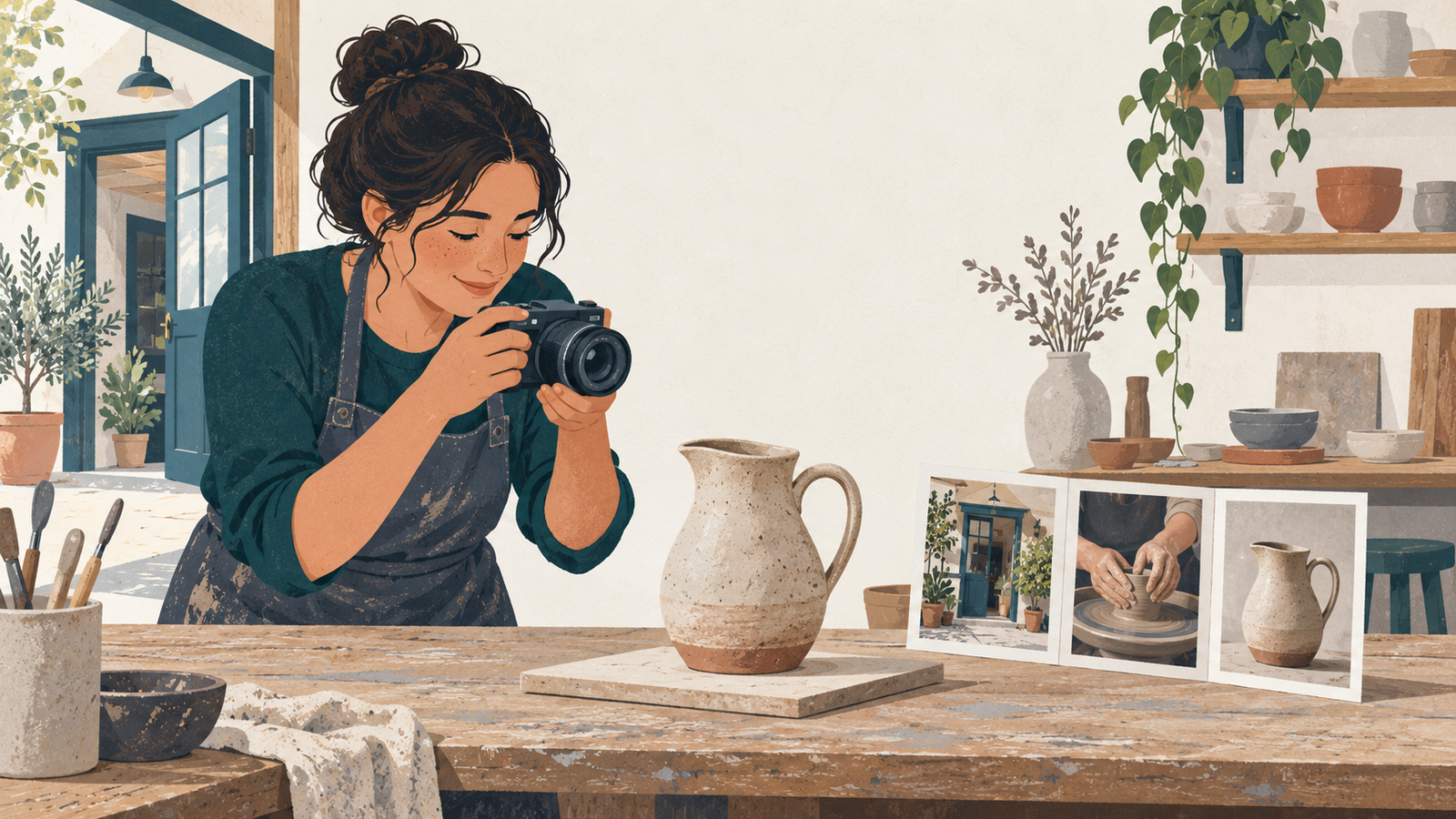
The illustration at the top of this page is drawn artwork made for the article. It is not a photograph of a real workshop, and not a sample of anyone's work.
Check the crop, caption, and text alternative in the page
Place the candidate into a draft of the actual page, then preview it on a phone and on a wider screen. Look for the detail you chose the image to show. If the entrance is cut off, or the hand-building tool becomes too small to recognize, change the crop or pick a closer shot. A photograph can work perfectly in its original file and fail inside a narrow card on the page.
Write the caption at the same time, and let it carry context the picture cannot, such as which entrance to use or whose example piece is shown. Information a customer needs should not live only inside the bitmap.
For the text alternative, describe the image's meaning in this context. W3C's guidance on informative images says the alternative should convey what the image shows rather than offer a literal inventory of the frame (Informative images). For the hypothetical entrance photograph, "Class entrance through the courtyard door" does that job if it is what the picture shows. Decorative images are handled differently: W3C recommends an empty alternative so screen readers skip them (Decorative images). Ask whoever maintains the site to confirm the editor produces that markup.
Record what you chose and keep it current
Save the original file and the chosen crop alongside the page URL, the caption, the text alternative, and the approval note. When the entrance, the service, or the staff changes, that record tells you which photographs on the page need a second look.