Operations & Websites
Explaining your service area without repetitive pages
How to tell visitors where you travel, test whether your wording works, and decide if separate location pages add real value.
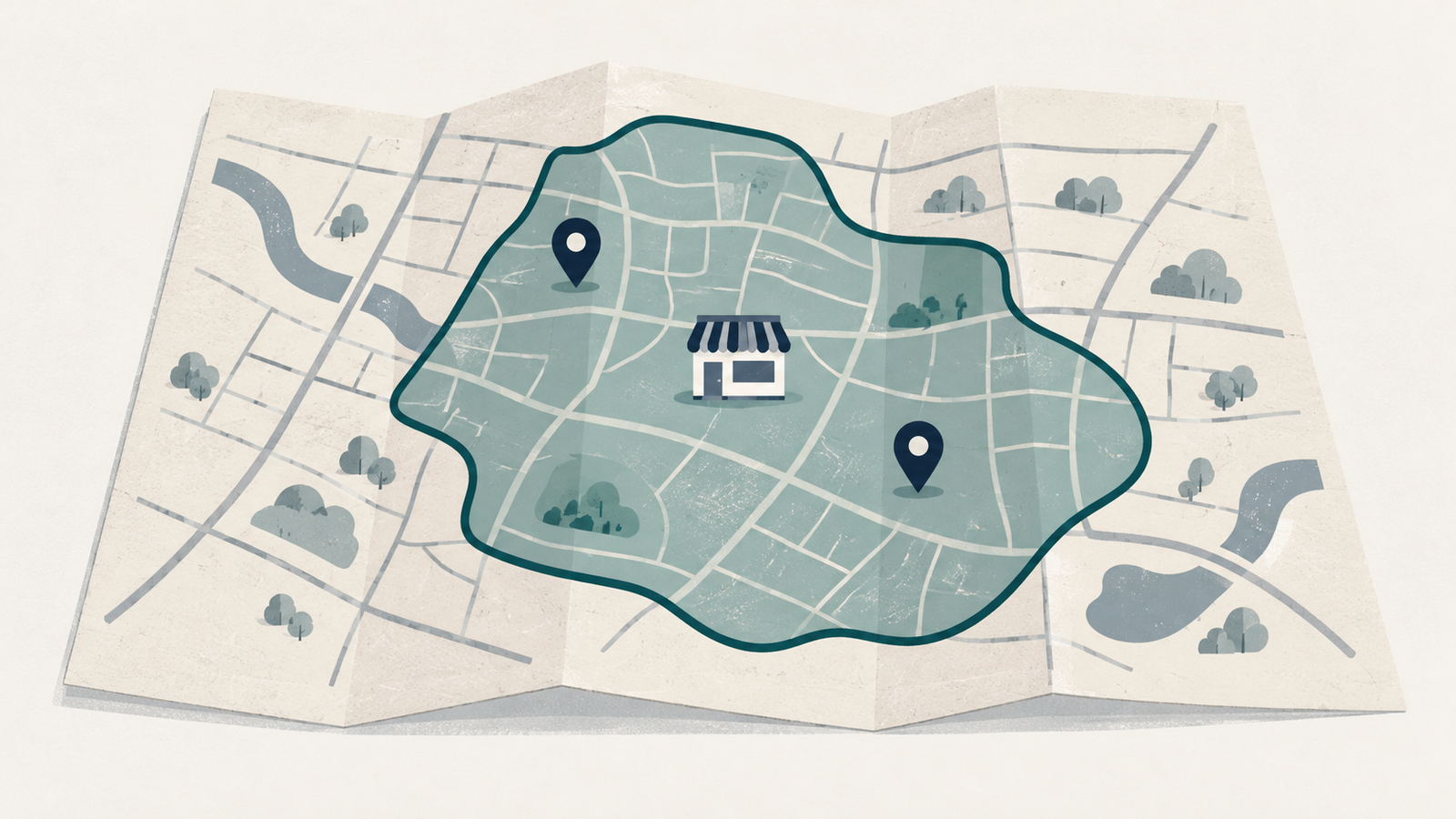
Open your primary service page on a phone and look for the answer to one question: can this business travel to my address? Note what the page says. If the page says only "serving the surrounding area," ask the person who schedules visits which places that includes.
Agree on the boundary before writing
Start by listing the cities, neighborhoods, or postal codes your team visits routinely. Have the person who assigns travel review that list against current staffing and travel capacity. Proximity on a map does not always mean a location makes operational sense.
Group locations into two categories: places covered routinely, and edge locations that require individual review. If certain services involve specialized equipment or longer appointments, note those service-specific boundaries directly on the list. Record the date of this review and name the person authorized to approve changes when staffing, fleet capacity, or travel schedules shift. Use this list when reviewing the public page after a coverage change.
Put the answer beside the next step
Place your coverage details on the service page directly above or alongside the inquiry link, contact form, or booking button.
List the approved towns or districts in plain paragraph text. If you include an embedded map or graphic boundary, ensure all location names and rules exist as regular text as well. Check that the map and written list describe the same area. Avoid a precise-looking outline if staff must confirm coverage address by address.
Test the wording on a phone using two realistic checks:
A location situated comfortably inside your standard service territory.
An address near your border whose acceptance depends on staff availability or extra travel time.
For the first location, the page should confirm eligibility immediately. For the border location, the page should direct the visitor to a straightforward contact option while stating that travel to border locations is confirmed before an appointment is finalized. Asking for a town or postal code on an inquiry form is often enough to complete that first check without requiring a full street address upfront.
Decide whether another page earns its place
Before creating standalone city pages, write out what unique, practical details each page will offer. A real branch's visiting information or services offered only in that location may give a visitor a reason to open a separate page. If the planned change is only a town name in the heading, start with one service-area section and identify what information is still missing.
Under Google Search spam policies, doorway abuse covers pages created to rank for specific, similar searches that lead visitors through intermediate pages less useful than the final destination. Sites violating these policies risk reduced ranking or complete exclusion from search results. This guideline does not forbid genuine location pages, but it highlights why low-value variations built solely for search phrases can work against you.
If your site already has multiple city pages, catalog the unique details on each page before deleting or redirecting anything. Review this inventory with your website maintainer before deciding which pages to combine, so useful information and existing destinations are considered together.
Align your Business Profile with the website
If you manage a Google Business Profile, check its settings against your approved coverage list. Under Google Business Profile service-area guidance, businesses specify service areas by city, postal code, or other defined geographic boundaries, rather than setting a distance radius. These are Business Profile settings; they do not prescribe how you must organize service-area information on your website. Google also instructs businesses that do not receive customers at their physical address to remove that address from the public profile.
Make sure your website reflects the same reality. If your shop or administrative office is not open for public walk-in visits, do not display the street address as a walk-in location on your contact page. After updating your site and profile, run the two-location test on your phone once more to ensure links function properly, and save the approved coverage list with the page address and review date. Assign someone to update the page and profile when coverage changes.