Website reviews
Can customers actually reach you?
A practical contact-form check for a small-business website
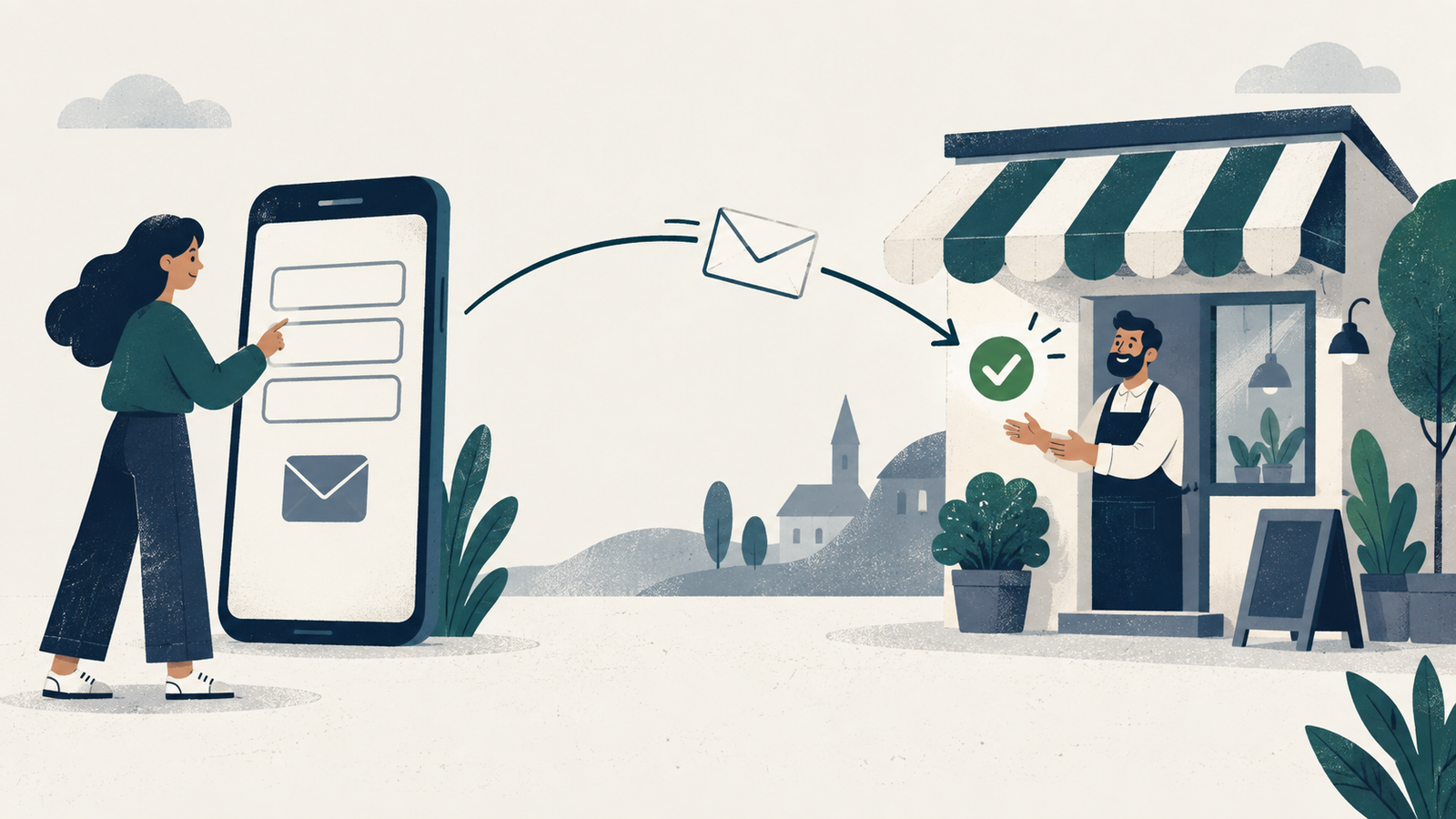
A contact form can show a thank-you message while the inquiry never reaches the person who should answer it. If you run a small business, check the whole journey: find the form on your phone, send a clearly marked test, and confirm it arrives in the right inbox with enough information to reply.
You can do the first pass yourself. Keep a short list of anything that fails so your web provider has a specific problem to investigate.
Open the path a customer would take
Open a service page on your phone. Look for the next step you would take if you wanted a quote or had a question about that service. Can you find a contact link, phone number, or inquiry button without guessing which menu to open?
Tap the link and follow it. Check whether the form fits on the screen, whether buttons are easy to select, and whether the keyboard covers instructions you need to read. Try the same route on a computer too. These are practical checks of your own site, not a complete accessibility assessment.
If you publish a phone number or email address as another way to reach you, check those details too. A contact page should reflect the channels your team actually monitors.
This first pass is about the route as much as the form itself. If the path from a service page to a contact method is hard to spot, a visitor has to stop and work out where to go next. Make a note of any page where the next step is missing, buried, or labelled vaguely.
Check whether the form asks for the right information
Read each field and ask what your team does with the answer. A name, reply address, and description of the request may be enough for an initial inquiry. A service-area business might also need a postcode to decide whether it can help. Your actual intake process should determine the fields.
W3C recommends asking only for information required to complete the transaction or process, and notes that irrelevant or excessive requests make people more likely to abandon a form (W3C Forms Tutorial).
For your own review, check whether you can tell which fields are required before submitting. If a detail can wait until your first reply, consider making it optional or removing it.
Then look at the wording on each field. W3C says all form controls should have labels, usually by using the label element, and that labels should describe the purpose of the form control (W3C labeling guidance). Placeholder text can help, but it is not a replacement for labels (W3C instructions). If a field says only "Details," would a new customer know what belongs there? "Tell us what you need help with" gives clearer direction.
Ask your web provider to confirm that labels are associated with their fields in the code. W3C says a label and form control should be associated either implicitly or explicitly, and that explicit association uses a label for attribute that exactly matches the field's id (W3C labeling guidance).
It is also worth noticing the form's layout on your phone. W3C notes that labels placed above fields can reduce horizontal scrolling for mobile users and people with low vision (W3C labeling guidance). When appropriate HTML5 field types are used, mobile devices can also show more helpful input methods, such as a numeric keypad for number fields or a date picker for date fields (W3C labeling guidance). You do not need to audit the code yourself to spot the practical effect. You can see whether the form is easy to complete on the device in your hand.
As a practical precaution, keep sensitive documents and private account details out of a general contact form.
Test mistakes before you test success
Before sending your valid test, leave a required field empty. Then try an incomplete email address. Read the response from the form.
The message should identify the problem and explain how to correct it. "Enter an email address so we can reply" gives the visitor a useful action. A generic "Error" does not. W3C says notifications should be concise and clear, and that error messages should be easy to understand with simple instructions for resolving them (W3C form notifications).
Check whether the information you already typed remains in place after the error. Note any field that is cleared unexpectedly, any message you cannot see on your phone, or any button that stops responding. Record the page URL and what you did just before the problem appeared.
Trace one test inquiry all the way to the inbox
Tell your team that you are checking the form, especially if inquiries create tasks or trigger an automated reply. Use your own name and contact details. Do not use a real customer's information.
Write a message that clearly identifies the test inquiry, for example: "Website contact-form test. Please confirm receipt; no customer action needed." Include the date or another harmless identifier so the team can distinguish it from other checks.
Submit it and read the confirmation on screen. W3C says that when a form is submitted, users should be notified whether the submission was successful or if errors occurred, and that success messages help confirm task completion (W3C form notifications).
That confirmation is only one part of the test. It tells you what the website says happened. It does not tell you whether the message reached the inbox your team actually uses.
Open the destination inbox, or ask its owner to confirm receipt. Check that the test arrived in the intended place and contains the details you entered. If replying is part of your normal process, reply to the test and confirm that the reply reaches your own address.
If the message is missing, check junk folders and the form's notification settings. Your web provider may need to inspect submission records or email delivery logs. Tell them what time you submitted, which page you used, what the screen showed, and which inbox was meant to receive the message. Avoid changing multiple settings at once without recording what changed.
After a fix, repeat the same test. A visible confirmation and a received inquiry are separate things to verify.
Set a response expectation your team can keep
Read the copy beside the form and in its confirmation message. Does it tell the customer what happens next? If you publish a response time, choose one your team can usually meet and make the working days clear.
For example, a business might say that it replies by email within two business days, if that matches its actual process. Treat that as an example to adapt, not a promise to copy.
Do not describe a general inquiry form as an urgent contact channel unless someone monitors it accordingly. Also decide who owns incoming messages and who covers absences. Put that responsibility in your team's working notes so it is clear who should act when a customer writes.
Use a simple record you can repeat
Save the test date, page URL, device, receiving inbox, and result. Keep that note with your website records so the next check starts with what you already know.
A simple repeatable checklist is enough:
Find the contact route from a service page on a phone.
Review field labels and required information.
Trigger an error and check the correction instructions.
Send a clearly marked test inquiry using your own details.
Read the submission confirmation.
Confirm receipt in the correct inbox and test the reply path if relevant.
Check that the stated response expectation still matches your process.
If you need help, share the failed step with your web provider. "The form showed a confirmation at 10:15, but our reception inbox received nothing" gives them a useful starting point.
Run this check after form changes, email routing changes, or a website redesign. Keep the results with your website notes for your next check.
A working contact form lets someone find the right path, complete it, and reach the team meant to respond.